Your First Django Project
The first step to create our Bakery Finder app is to start a new Django project. Django has some magic meaning that when we run some scripts, Django will create the skeleton of a Django project for us! The skeleton is a bunch of files that we will explain as we go.
Naming of these files and directories are very important. Django needs to maintain a certain structure to be able to find important bits of information. If they are renamed or moved, it might get confused or throw some unexpected errors. As such, you shouldn’t rename the files that we are about to create, or move them around.
Ready to get going?
Note
Some of the following instructions use the terminal. If you’re working in Windows, you should use PowerShell. On Mac it would be the Mac Terminal. On Linux you can use any Bash compatible shell. There were instructions on opening the terminal in the Python installation content.
Make sure you’re working in the project directory that we created in those instructions. If you need to you can use the cd command to navigate to it. For most of you that probably looks like:
-
cd ~ -
cd bakery_site
Create Project
To create the skeleton of the Django project, run the following command in your terminal:
uv run django-admin startproject bakery_project .Understanding Your Project Structure
django-admin is a Django command that creates a templated Django project for you. You should now have a directory structure which looks like this:
bakery_site
├── manage.py
├── bakery_project
│   ├── asgi.py
│   ├── __init__.py
│   ├── settings.py
│   ├── urls.py
│   └── wsgi.py
├── .venv
│   └── ...
├── pyproject.toml
└── uv.lock
Note
django-admincreated:- the
manage.pyfile - the entire
bakery_project/directory, which contains:asgi.pysettings.py- etc…
- the
- You can also see:
- the virtual environment file (
.venv/) that we created earlier - the
pyproject.tomlanduv.lockfiles that UV is using to manage our project for us.
- the virtual environment file (
Let’s walk through what some of these files are.
The manage.py is a script that helps with management of the site. One of the things this file lets us do is to start a web server on our computer without installing anything else.
The settings.py file contains the configuration of your website, much like your settings app on your phone or laptop.
Remember when we talked about letters earlier? The urls.py file is like an address book, so we can write different letters to different people, with personalised content. There’s a little thing called the ‘urlresolver’ that’s going to help us with that down the track.
We can ignore the other files for now as we won’t change them - the only thing to remember is not to delete them by accident!
Let’s run it!
Before we get too carried away, let’s check your Django project works. In the console, we can start the web server as follows:
uv run manage.py runserverNote
If you are on Windows and this fails with UnicodeDecodeError, use this command instead:
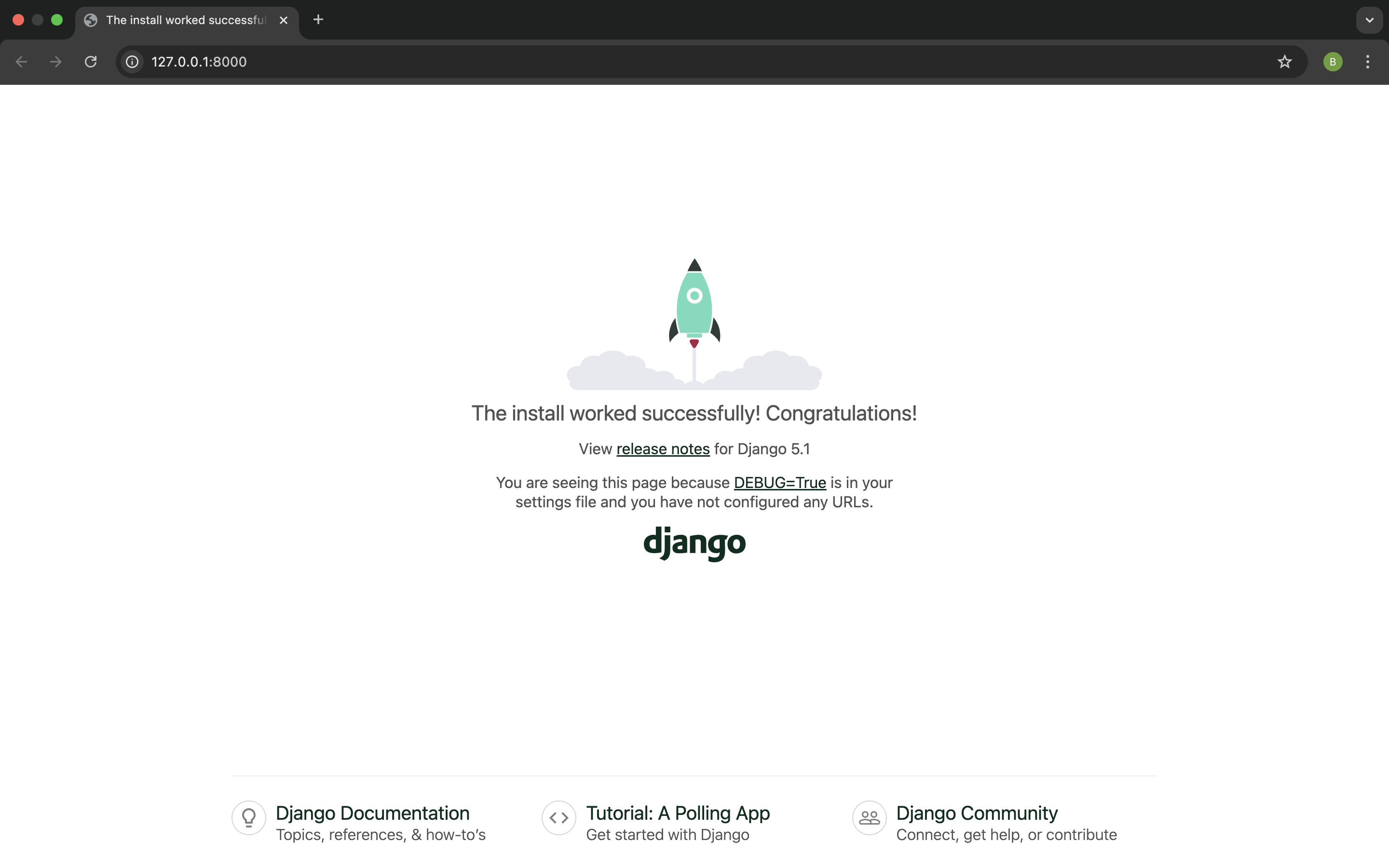
uv run manage.py runserver 0:8000Now you need to check that your website is running. Open your browser ( eg Firefox, Chrome, Safari etc) and enter this address:
http://127.0.0.1:8000/You can open this in another browser window and you should see the Django install worked page.
Congratulations! You’ve just created your first website and run it using a web server! Isn’t that awesome?
Note
Note that a command window can only run one thing at a time, and the command window you opened earlier is running the web server. As long as the web server is running and waiting for additional incoming requests, the terminal will accept new text but will not execute new commands.
To type additional commands while the web server is running, open a new terminal window and navigate to the project directory as before. To stop the web server, switch back to the window in which it’s running and press CTRL+C (Control and C keys together).
Psst, if that doesn’t work on Windows, you might have to press Ctrl+Break.